> ## Documentation Index
> Fetch the complete documentation index at: https://docs.lerian.studio/llms.txt
> Use this file to discover all available pages before exploring further.
# Managing fee schedules
> Define flat, percentage, tiered, or expression-based fees so the reconciliation engine can automatically verify and flag fee discrepancies on matches.
The **Fee Schedules** page in the Matcher UI lets you define expected fees — flat, percentage, tiered, or expression-based — that the reconciliation engine uses to automatically verify and flag fee discrepancies between matched transactions. The page also hosts the context-scoped **Fee rules** that bind schedules to transactions.
## Accessing the Fee Schedules page
***
Navigate to **Matcher > Settings > Fee Schedules** in the left sidebar.
## Fee schedules table
***
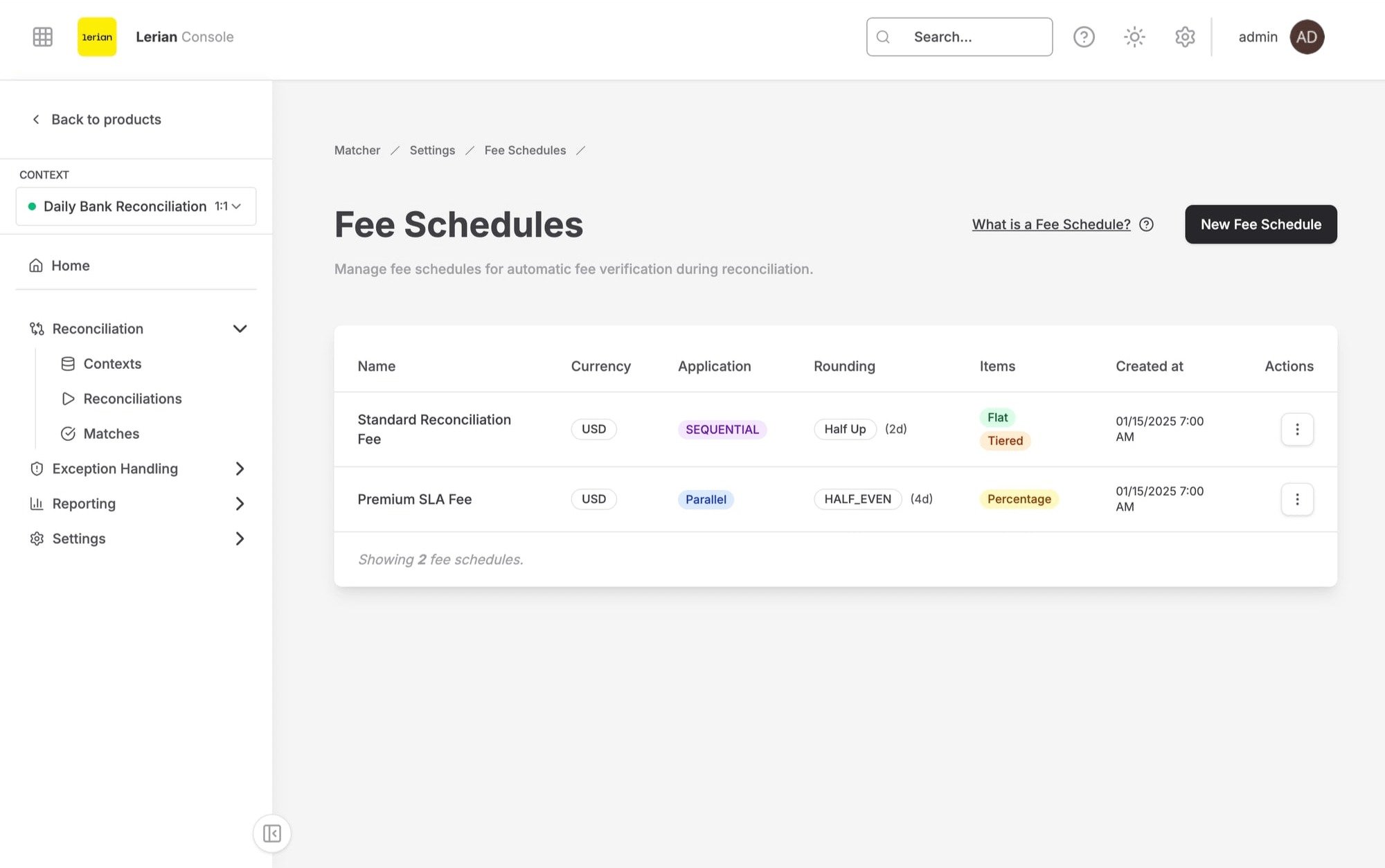 Each row in the data table displays the following columns:
| Column | Description |
| --------------------- | --------------------------------------------------------------------------- |
| **Name** | The fee schedule name |
| **Currency** | The currency code (e.g. BRL) |
| **Application order** | How fee items are applied, shown as a badge: **PARALLEL** or **CASCADING** |
| **Rounding** | The rounding mode and scale — e.g. "HALF\_UP @ 2" |
| **Items** | The number of fee items in the schedule |
| **Used by** | How many contexts reference the schedule through fee rules, or "Not in use" |
| **Created** | Date the schedule was created |
| **Actions** | Inline **View**, **Simulate**, **Edit**, and **Delete** buttons |
### Application order
| Mode | Description |
| ------------- | ------------------------------------------------------------------------------------------------------------- |
| **Parallel** | All fee items are calculated independently against the original gross amount |
| **Cascading** | Fee items are applied sequentially — each item uses the net amount after the previous item's fee was deducted |
### Rounding modes
| Mode | Description |
| ------------ | ---------------------------------------------------------------------------------- |
| **Half Up** | Rounds to the nearest neighbor; rounds up on a 0.5 boundary |
| **Bankers** | Rounds to the nearest neighbor; rounds to the nearest even digit on a 0.5 boundary |
| **Floor** | Always rounds toward negative infinity |
| **Ceil** | Always rounds toward positive infinity |
| **Truncate** | Drops excess decimal places without rounding |
### Structure types
| Type | Description |
| -------------- | -------------------------------------------------------------------------------------------------- |
| **Flat** | A fixed monetary amount (e.g. 5.00) |
| **Percentage** | A decimal rate applied to the base amount (e.g. 0.015 = 1.5%) |
| **Tiered** | Marginal tranches by base amount — each tier charges its rate on the slice up to its ceiling |
| **Expression** | A formula over the gross amount plus transaction metadata keys, parsed and validated by the server |
## Creating a fee schedule
***
Click the **New schedule** button at the top of the page. A slide-over sheet opens with the following sections.
### Schedule fields
| Field | Description |
| --------------------- | --------------------------------------------------------------------------- |
| **Name** | A descriptive name for the schedule (e.g. "Bank Fees BRL") |
| **Currency** | The three-letter currency code (e.g. BRL). Cannot be changed after creation |
| **Application order** | Select Parallel or Cascading. Defaults to Parallel |
| **Rounding mode** | Select one of: Half Up, Bankers, Floor, Ceil, Truncate. Defaults to Half Up |
| **Rounding scale** | Number of decimal places for rounding (0–12). Defaults to 2 |
### Fee items
After filling in the schedule fields, add at least one fee item. Click **Add item**:
| Field | Description |
| ------------- | ------------------------------------------------------------------------- |
| **Name** | A descriptive name for the fee item (e.g. "Wire Fee") |
| **Priority** | Determines the order in which items are applied (whole number, 0 or more) |
| **Structure** | Select Flat, Percentage, Tiered, or Expression |
Depending on the selected structure, additional fields appear:
| Structure | Additional fields | Description |
| -------------- | ----------------- | ---------------------------------------------------------------------------------------------------------------------------------------------------------------------------------------------------------------------------------------------------- |
| **Flat** | **Amount** | The flat amount in the schedule currency (e.g. "5.00") |
| **Percentage** | **Rate** | A decimal rate between 0 and 1 (e.g. "0.015" for 1.5%) |
| **Tiered** | **Tiers** | A structured tier editor: each row has a **Rate** and an **Up to** ceiling. Add or remove rows with **Add tier** and the remove control; ceilings must strictly increase, and you can leave the last tier's ceiling blank for an open-ended tier |
| **Expression** | **Expression** | A formula over the injected `gross` amount plus transaction metadata keys — operators `+ - * /` and parentheses, plus the functions `days_late(a, b)`, `days_between(a, b)`, `max(…)`, `min(…)`, `abs(x)`, and `clamp(x, lo, hi)`. Validated on save |
You can add multiple items before submitting. Click **Create schedule** to save the fee schedule.
Fee items are immutable after creation. To change item structures, create a new schedule.
## Editing a fee schedule
***
Click **Edit** on a fee schedule row. The slide-over sheet opens with the current values pre-filled.
You can modify the schedule name, application order, rounding mode, and rounding scale. The currency field is locked after creation, and fee items are shown read-only. Click **Save changes** to apply.
## Simulating a fee schedule
***
Click **Simulate** on a fee schedule row to estimate fees for a given amount without recording anything.
The **Simulate fees** dialog asks for:
| Field | Description |
| ---------------- | ----------------------------------------------- |
| **Gross amount** | The amount to simulate against (e.g. "1000.00") |
| **Currency** | Pre-filled from the schedule's currency |
Click **Run simulation**. The results show:
* **Gross** — The input amount
* **Total fee** — The total fees deducted
* **Net** — The amount remaining after fees
If the schedule has multiple fee items, a breakdown table lists each **Item** with the **Base used** for its calculation and the **Fee** charged.
## Deleting a fee schedule
***
Click **Delete** on a fee schedule row. The confirmation dialog warns that deleting permanently removes the schedule and can break fee rules that reference it. Click **Delete schedule** to proceed.
If fee rules still reference the schedule, deletion is blocked. The error identifies the referencing contexts (up to 20) and reports the total count. Remove those fee rules first.
## Fee rules
***
Below the schedule catalog, the page hosts a **Fee rules** section — context-scoped rules binding schedules to matching predicates. Select a context, then:
* Click **New fee rule** to bind a fee schedule to a matching side and a set of field predicates. Predicates compare transaction fields with operators such as equals, does not equal, is one of, is present, greater than, at least, less than, at most, and in the inclusive range.
* Use the inline **Edit** and **Delete** buttons on a rule row to change or remove it.
Each row in the data table displays the following columns:
| Column | Description |
| --------------------- | --------------------------------------------------------------------------- |
| **Name** | The fee schedule name |
| **Currency** | The currency code (e.g. BRL) |
| **Application order** | How fee items are applied, shown as a badge: **PARALLEL** or **CASCADING** |
| **Rounding** | The rounding mode and scale — e.g. "HALF\_UP @ 2" |
| **Items** | The number of fee items in the schedule |
| **Used by** | How many contexts reference the schedule through fee rules, or "Not in use" |
| **Created** | Date the schedule was created |
| **Actions** | Inline **View**, **Simulate**, **Edit**, and **Delete** buttons |
### Application order
| Mode | Description |
| ------------- | ------------------------------------------------------------------------------------------------------------- |
| **Parallel** | All fee items are calculated independently against the original gross amount |
| **Cascading** | Fee items are applied sequentially — each item uses the net amount after the previous item's fee was deducted |
### Rounding modes
| Mode | Description |
| ------------ | ---------------------------------------------------------------------------------- |
| **Half Up** | Rounds to the nearest neighbor; rounds up on a 0.5 boundary |
| **Bankers** | Rounds to the nearest neighbor; rounds to the nearest even digit on a 0.5 boundary |
| **Floor** | Always rounds toward negative infinity |
| **Ceil** | Always rounds toward positive infinity |
| **Truncate** | Drops excess decimal places without rounding |
### Structure types
| Type | Description |
| -------------- | -------------------------------------------------------------------------------------------------- |
| **Flat** | A fixed monetary amount (e.g. 5.00) |
| **Percentage** | A decimal rate applied to the base amount (e.g. 0.015 = 1.5%) |
| **Tiered** | Marginal tranches by base amount — each tier charges its rate on the slice up to its ceiling |
| **Expression** | A formula over the gross amount plus transaction metadata keys, parsed and validated by the server |
## Creating a fee schedule
***
Click the **New schedule** button at the top of the page. A slide-over sheet opens with the following sections.
### Schedule fields
| Field | Description |
| --------------------- | --------------------------------------------------------------------------- |
| **Name** | A descriptive name for the schedule (e.g. "Bank Fees BRL") |
| **Currency** | The three-letter currency code (e.g. BRL). Cannot be changed after creation |
| **Application order** | Select Parallel or Cascading. Defaults to Parallel |
| **Rounding mode** | Select one of: Half Up, Bankers, Floor, Ceil, Truncate. Defaults to Half Up |
| **Rounding scale** | Number of decimal places for rounding (0–12). Defaults to 2 |
### Fee items
After filling in the schedule fields, add at least one fee item. Click **Add item**:
| Field | Description |
| ------------- | ------------------------------------------------------------------------- |
| **Name** | A descriptive name for the fee item (e.g. "Wire Fee") |
| **Priority** | Determines the order in which items are applied (whole number, 0 or more) |
| **Structure** | Select Flat, Percentage, Tiered, or Expression |
Depending on the selected structure, additional fields appear:
| Structure | Additional fields | Description |
| -------------- | ----------------- | ---------------------------------------------------------------------------------------------------------------------------------------------------------------------------------------------------------------------------------------------------- |
| **Flat** | **Amount** | The flat amount in the schedule currency (e.g. "5.00") |
| **Percentage** | **Rate** | A decimal rate between 0 and 1 (e.g. "0.015" for 1.5%) |
| **Tiered** | **Tiers** | A structured tier editor: each row has a **Rate** and an **Up to** ceiling. Add or remove rows with **Add tier** and the remove control; ceilings must strictly increase, and you can leave the last tier's ceiling blank for an open-ended tier |
| **Expression** | **Expression** | A formula over the injected `gross` amount plus transaction metadata keys — operators `+ - * /` and parentheses, plus the functions `days_late(a, b)`, `days_between(a, b)`, `max(…)`, `min(…)`, `abs(x)`, and `clamp(x, lo, hi)`. Validated on save |
You can add multiple items before submitting. Click **Create schedule** to save the fee schedule.
Fee items are immutable after creation. To change item structures, create a new schedule.
## Editing a fee schedule
***
Click **Edit** on a fee schedule row. The slide-over sheet opens with the current values pre-filled.
You can modify the schedule name, application order, rounding mode, and rounding scale. The currency field is locked after creation, and fee items are shown read-only. Click **Save changes** to apply.
## Simulating a fee schedule
***
Click **Simulate** on a fee schedule row to estimate fees for a given amount without recording anything.
The **Simulate fees** dialog asks for:
| Field | Description |
| ---------------- | ----------------------------------------------- |
| **Gross amount** | The amount to simulate against (e.g. "1000.00") |
| **Currency** | Pre-filled from the schedule's currency |
Click **Run simulation**. The results show:
* **Gross** — The input amount
* **Total fee** — The total fees deducted
* **Net** — The amount remaining after fees
If the schedule has multiple fee items, a breakdown table lists each **Item** with the **Base used** for its calculation and the **Fee** charged.
## Deleting a fee schedule
***
Click **Delete** on a fee schedule row. The confirmation dialog warns that deleting permanently removes the schedule and can break fee rules that reference it. Click **Delete schedule** to proceed.
If fee rules still reference the schedule, deletion is blocked. The error identifies the referencing contexts (up to 20) and reports the total count. Remove those fee rules first.
## Fee rules
***
Below the schedule catalog, the page hosts a **Fee rules** section — context-scoped rules binding schedules to matching predicates. Select a context, then:
* Click **New fee rule** to bind a fee schedule to a matching side and a set of field predicates. Predicates compare transaction fields with operators such as equals, does not equal, is one of, is present, greater than, at least, less than, at most, and in the inclusive range.
* Use the inline **Edit** and **Delete** buttons on a rule row to change or remove it.