> ## Documentation Index
> Fetch the complete documentation index at: https://docs.lerian.studio/llms.txt
> Use this file to discover all available pages before exploring further.
# Managing Ledgers
> Manage Ledgers in your Organization from the Midaz Module — create, edit, and delete them, and enable Validate Account Type or Validate Routes.
A Ledger groups the Accounts and Transactions in your Organization. You manage these Ledgers from the **Midaz Module**.
## Current Ledger
***
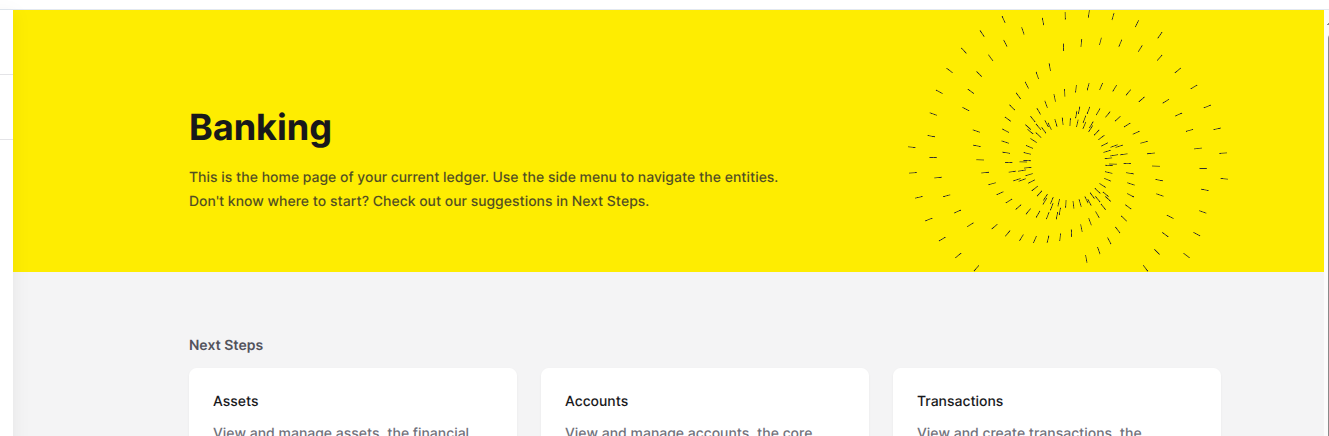
The name of the current Ledger appears in the header of the home page (*Figure 1*).
 ## Accessing the Ledgers page
***
To open the **Ledgers** page, click the **Ledgers** option in the **Foundation** section of the left sidebar menu.
The **Ledgers** page lists every Ledger in your Organization. The current Ledger appears selected.
### Available actions
From the **Ledgers** page, you can:
## Ledger settings
***
Each Ledger has a **Settings** tab where you can enable validation rules for Accounts and Transactions.
On the **Ledgers** page, find the Ledger you want to configure. Click the three dots () in the **Actions** column. Select **Details**.
In the ledger details sheet, click the **Settings** tab.
Enable or disable **Validate Account Type** and **Validate Routes** for this Ledger.
### Available settings
| Setting | What it controls | When to enable |
| --------------------- | ------------------------------------------------------------------------ | ------------------------------------------------------------------- |
| Validate Account Type | Requires new Accounts to use an Account Type registered for this Ledger. | Enable when Accounts must follow a controlled classification model. |
| Validate Routes | Requires Transactions to match configured Accounting Routes. | Enable after your Accounting Routes are planned or configured. |
Do not enable **Validate Routes** before your Accounting Routes exist. A Transaction that does not match a route fails validation.
## Accessing the Ledgers page
***
To open the **Ledgers** page, click the **Ledgers** option in the **Foundation** section of the left sidebar menu.
The **Ledgers** page lists every Ledger in your Organization. The current Ledger appears selected.
### Available actions
From the **Ledgers** page, you can:
## Ledger settings
***
Each Ledger has a **Settings** tab where you can enable validation rules for Accounts and Transactions.
On the **Ledgers** page, find the Ledger you want to configure. Click the three dots () in the **Actions** column. Select **Details**.
In the ledger details sheet, click the **Settings** tab.
Enable or disable **Validate Account Type** and **Validate Routes** for this Ledger.
### Available settings
| Setting | What it controls | When to enable |
| --------------------- | ------------------------------------------------------------------------ | ------------------------------------------------------------------- |
| Validate Account Type | Requires new Accounts to use an Account Type registered for this Ledger. | Enable when Accounts must follow a controlled classification model. |
| Validate Routes | Requires Transactions to match configured Accounting Routes. | Enable after your Accounting Routes are planned or configured. |
Do not enable **Validate Routes** before your Accounting Routes exist. A Transaction that does not match a route fails validation.