

Accessing the Audit Logs page
Navigate to Matcher → Reporting → Audit Logs in the left sidebar.
You need an administrator role or audit-log read access to open this page.
Verifying chain integrity
The Tamper-evidence panel sits above the filters. Click Verify integrity to re-verify the tenant audit hash chain. The check is read-only — it never alters a record — and returns one of two verdicts:
If the chain is longer than the inspection bound, the intact verdict notes that only the first records from the chain start were inspected and the most recent entries were not checked. A failed request shows an error with a Retry button — it is not a verdict.
Filters
Use the filter bar to narrow results. Actor is a free-text field of up to 255 characters. Action and Entity type are free-text fields of up to 50 characters each; none are dropdowns:
Click Apply filters to run the search. Applying filters resets pagination to the first page.
Audit log table
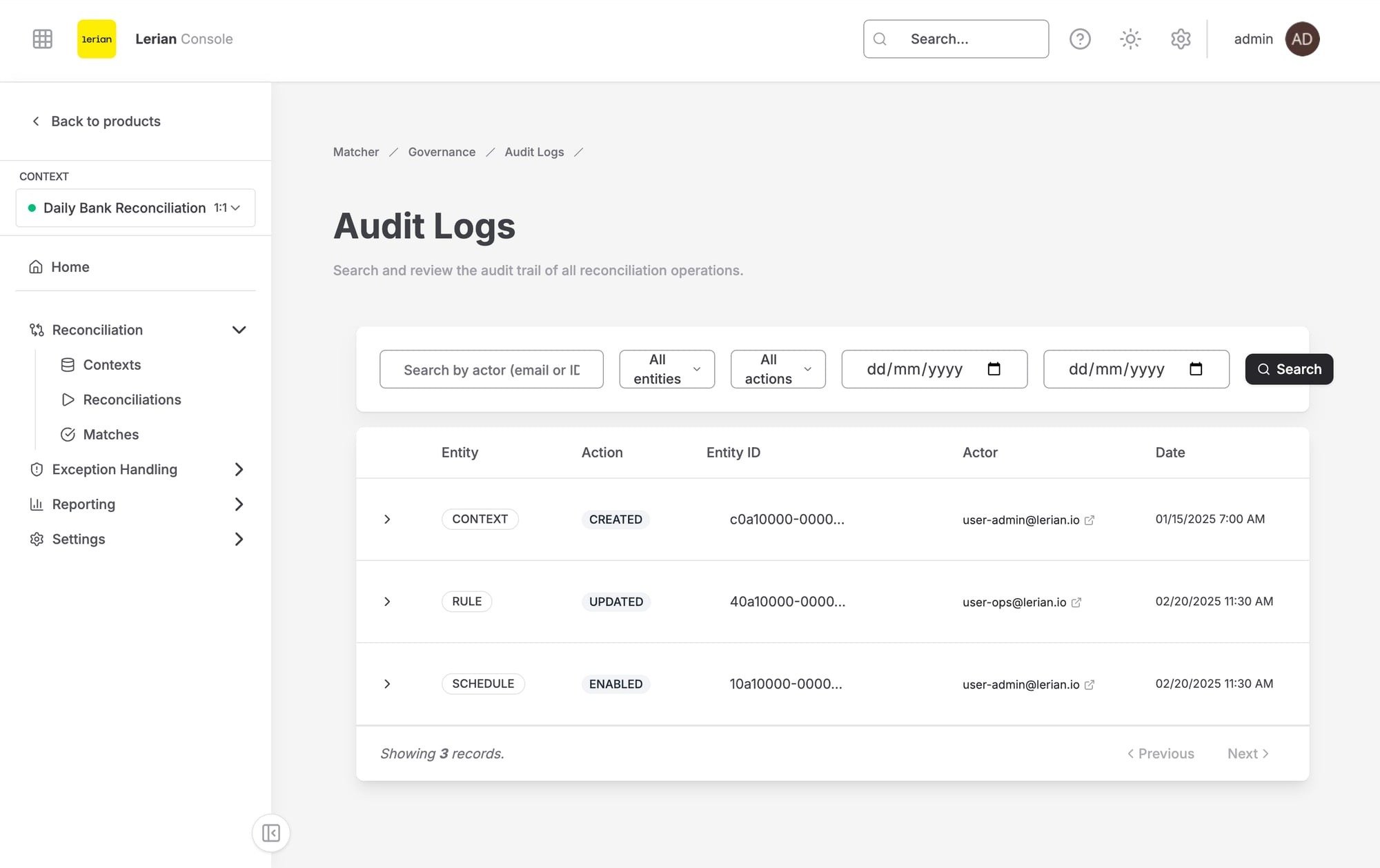
Figure 1. Audit Logs table.
Use the Previous and Next buttons in the table footer to page through results. The footer also shows the current page number and the number of events on that page.
Viewing change details
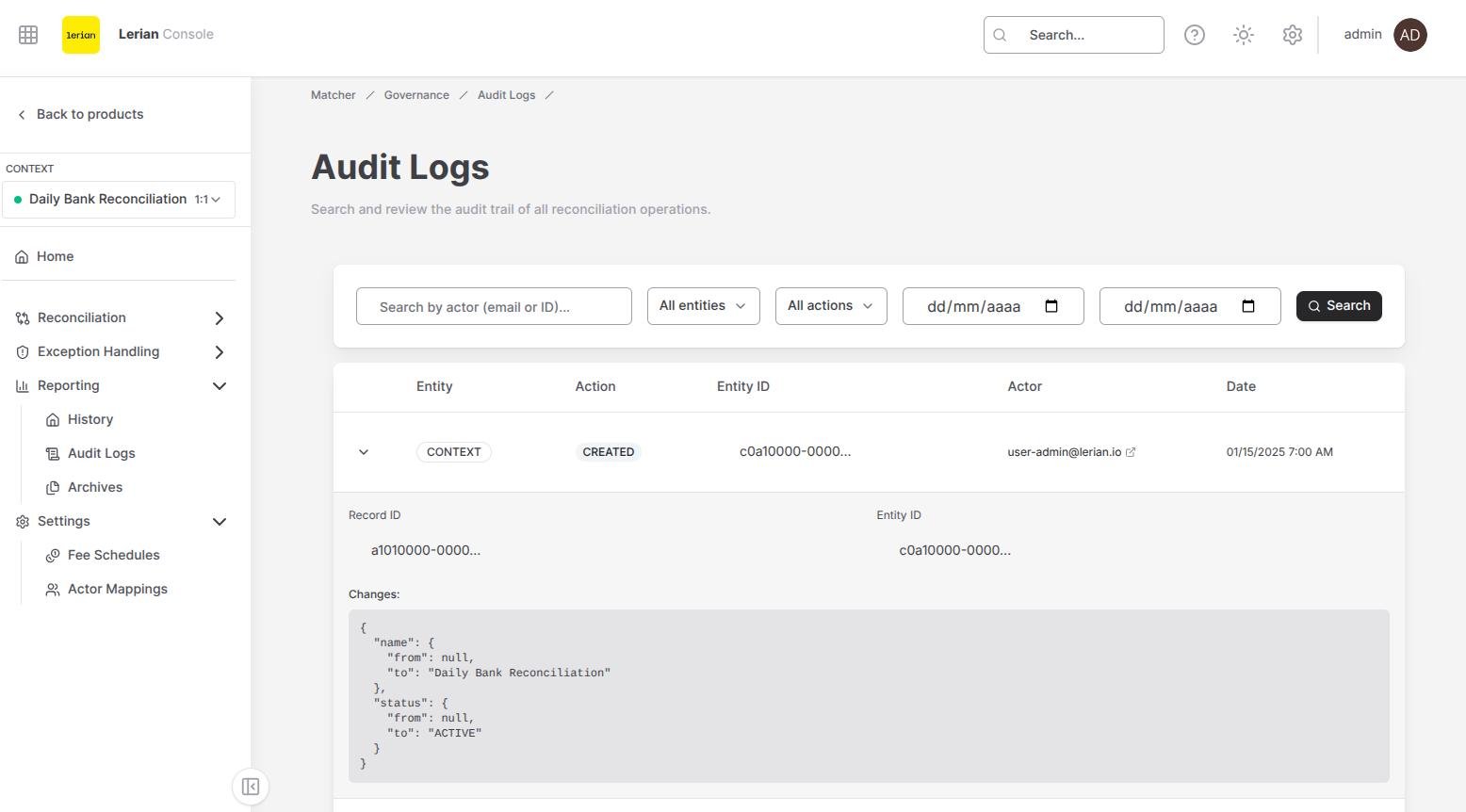
Figure 2. Audit log changes panel showing the recorded JSON audit payload.
If the original diff was larger than the audit payload cap, the row shows a Diff truncated marker and the panel explains that the full change set was replaced with a marker envelope. The complete diff is not recoverable from that record.